← All guides

How to edit the text on a page

jezwebtutorials.com.au · Elementor · about 1 minute · guide generated 2026-06-15

Editing text on your website is one of the most common things you'll do. In Elementor, the page builder your site uses, you change text by clicking straight on it and editing in the panel on the left. This short guide shows you both kinds of text: a heading and a paragraph.

▶ Watch the narrated walkthrough (with audio), jump to a step, or follow the written steps below.

1

Open Pages

Log in to your WordPress dashboard, then click Pages in the left menu. You'll see every page on your site listed here.
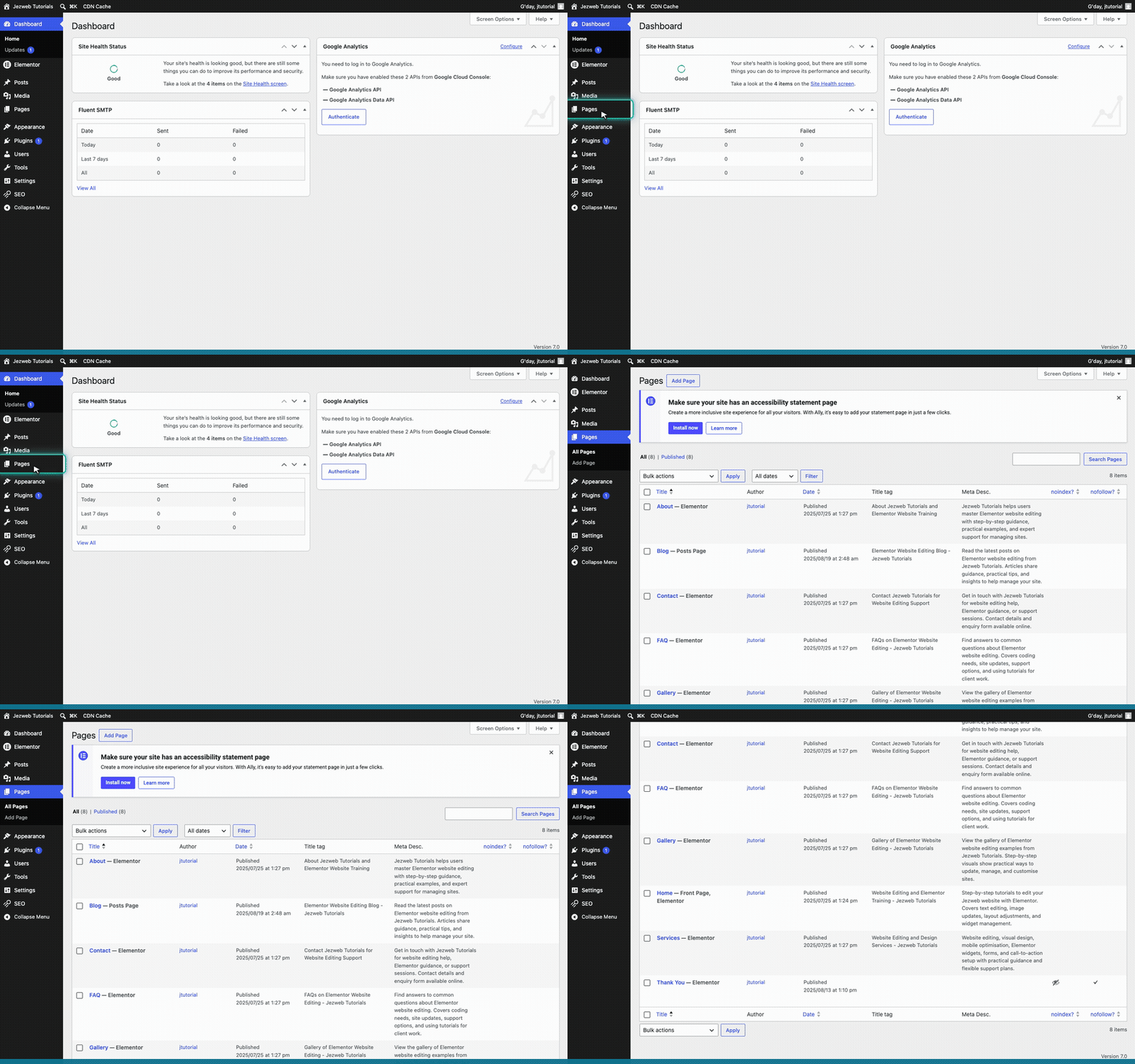
Step 1: Open Pages
2

Edit the page with Elementor

Find the page you want to change. We'll use the Home page. Hover over it and click Edit with Elementor. The editor takes a few seconds to open.
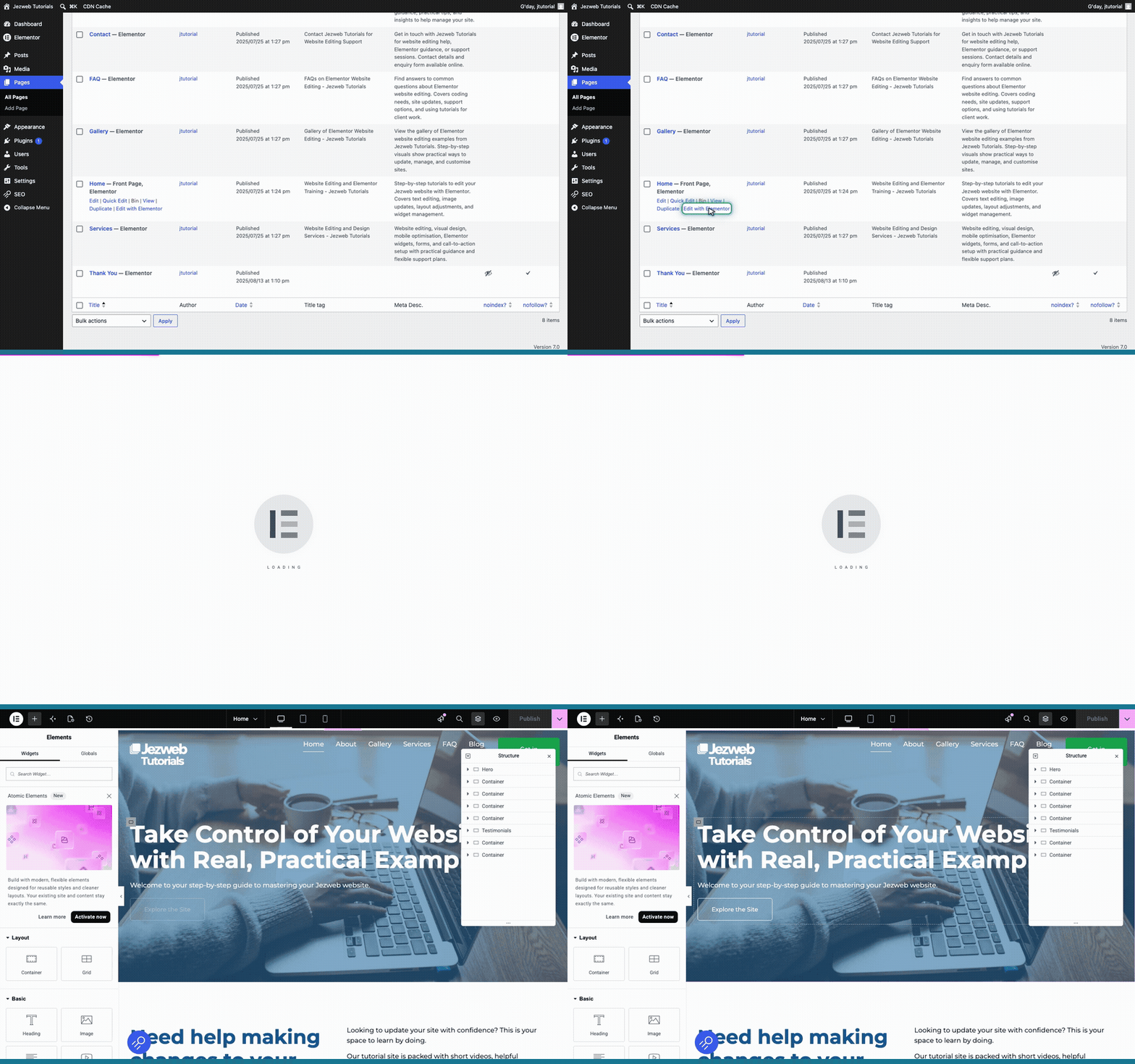
Step 2: Edit the page with Elementor
3

Click the heading you want to change

To change any text, you simply click on it. Click the main headline at the top of the page.
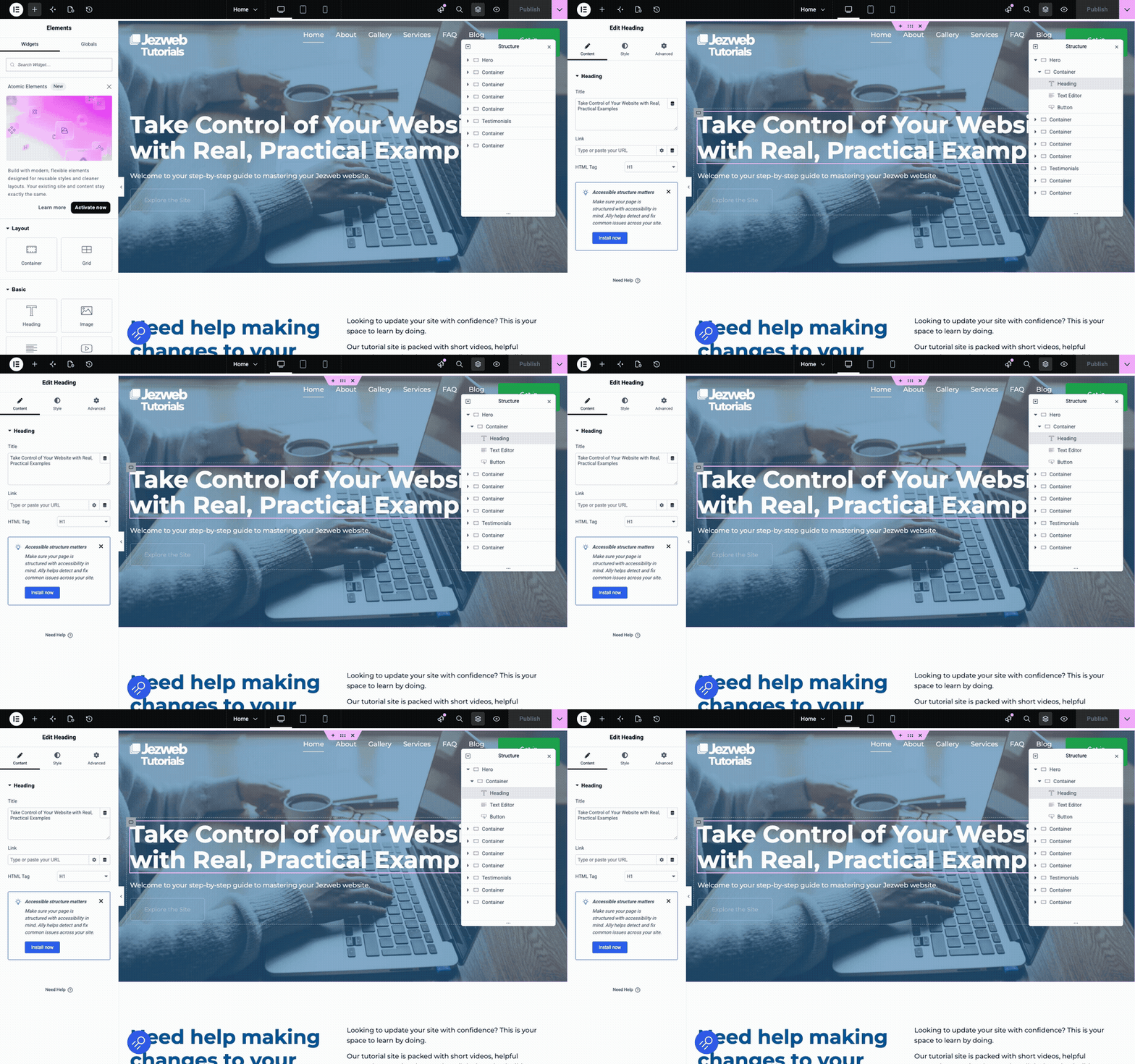
Step 3: Click the heading you want to change (animation)
4

Edit the heading text

On the left, a Title box shows the current heading. Click into it, clear the text, and type your new heading. Your change shows on the page as you type.
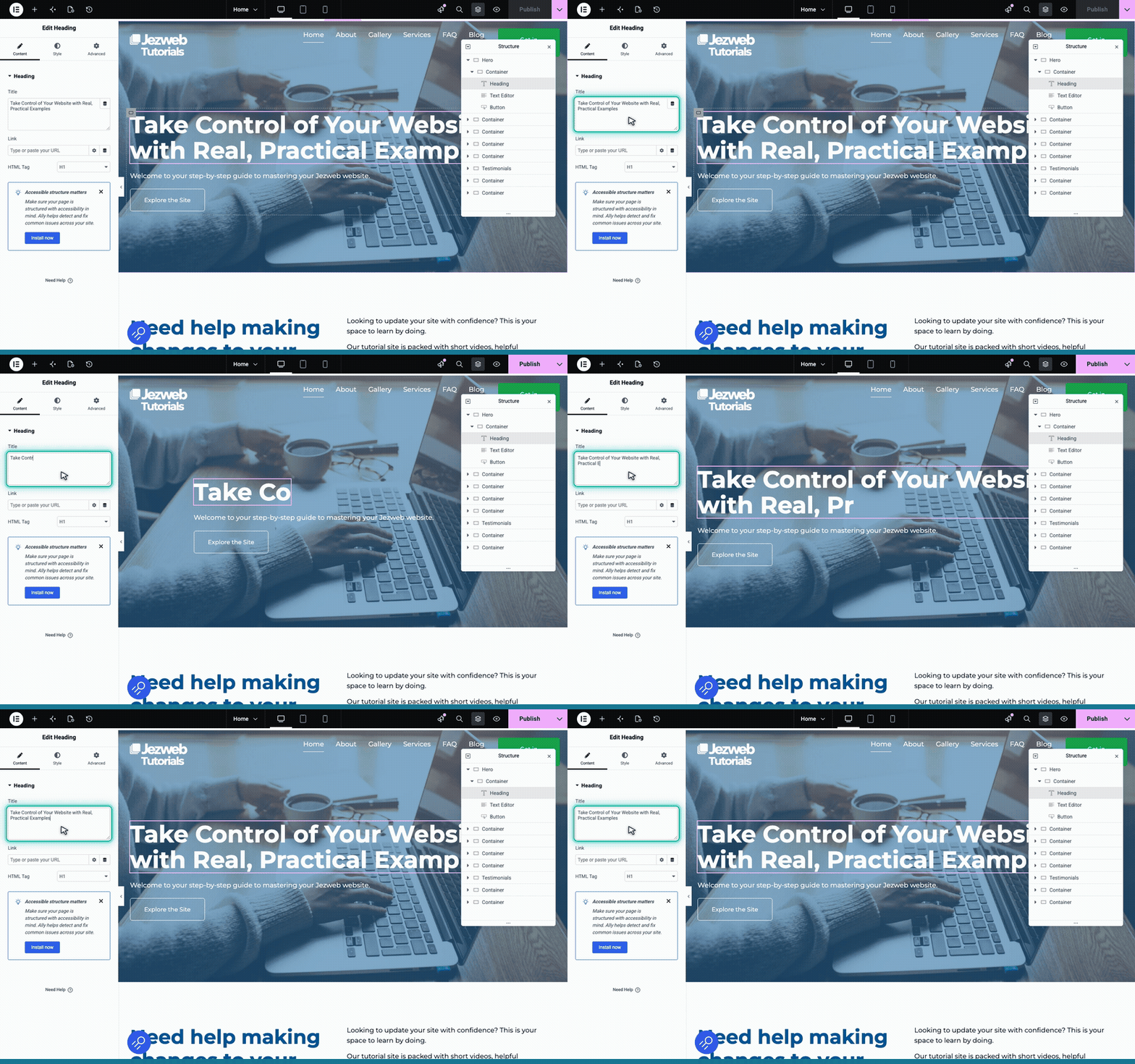
Step 4: Edit the heading text
5

Click a paragraph

Paragraphs work exactly the same way. Click the welcome text just below the headline.
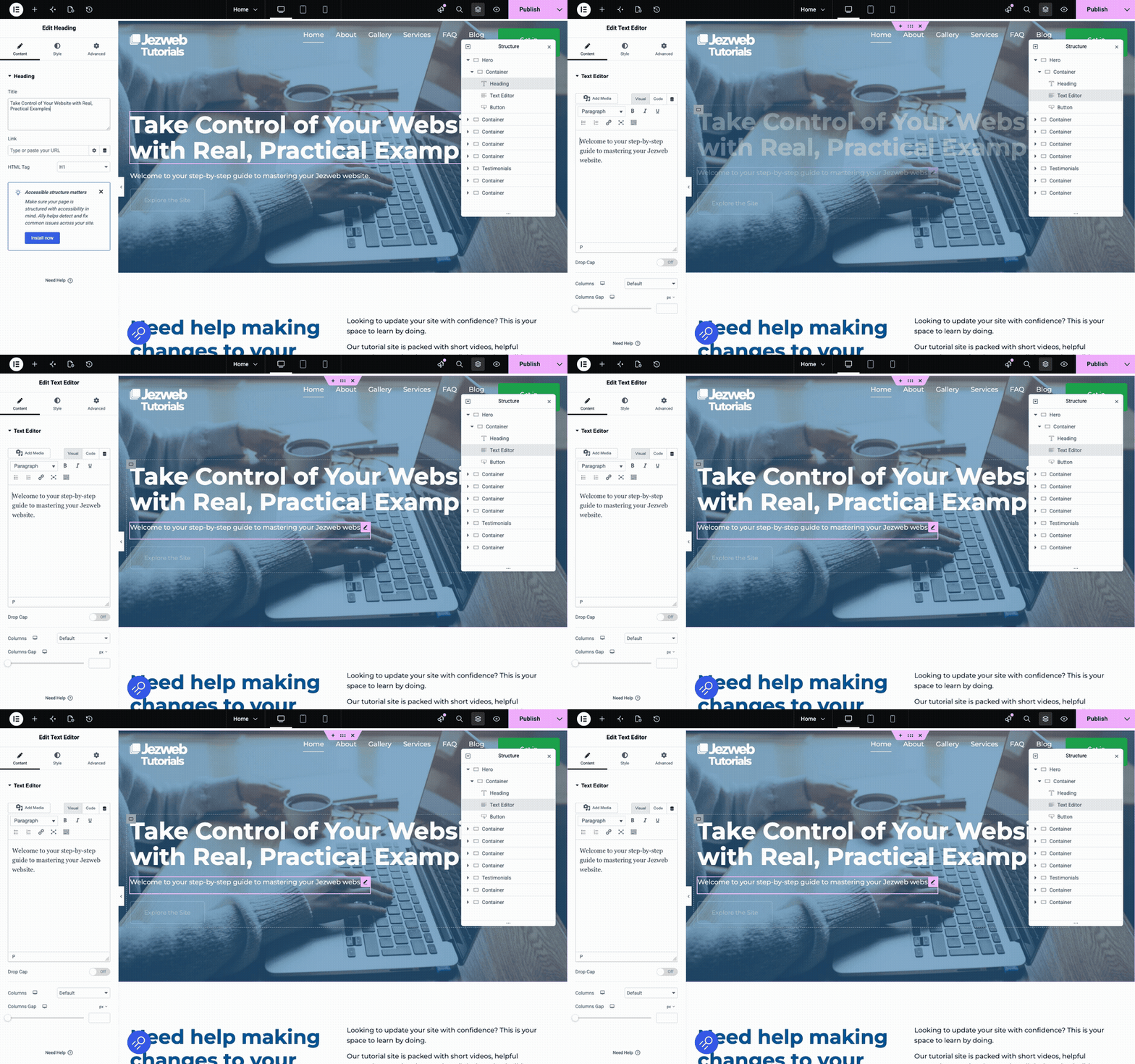
Step 5: Click a paragraph (animation)
6

Edit the paragraph text

This opens a text editor on the left, with bold, italics and the usual formatting buttons. Click into it and update the words however you like.
Tip: the toolbar here works just like a word processor. Select some text and use the buttons to make it bold, add a link, or change the alignment.
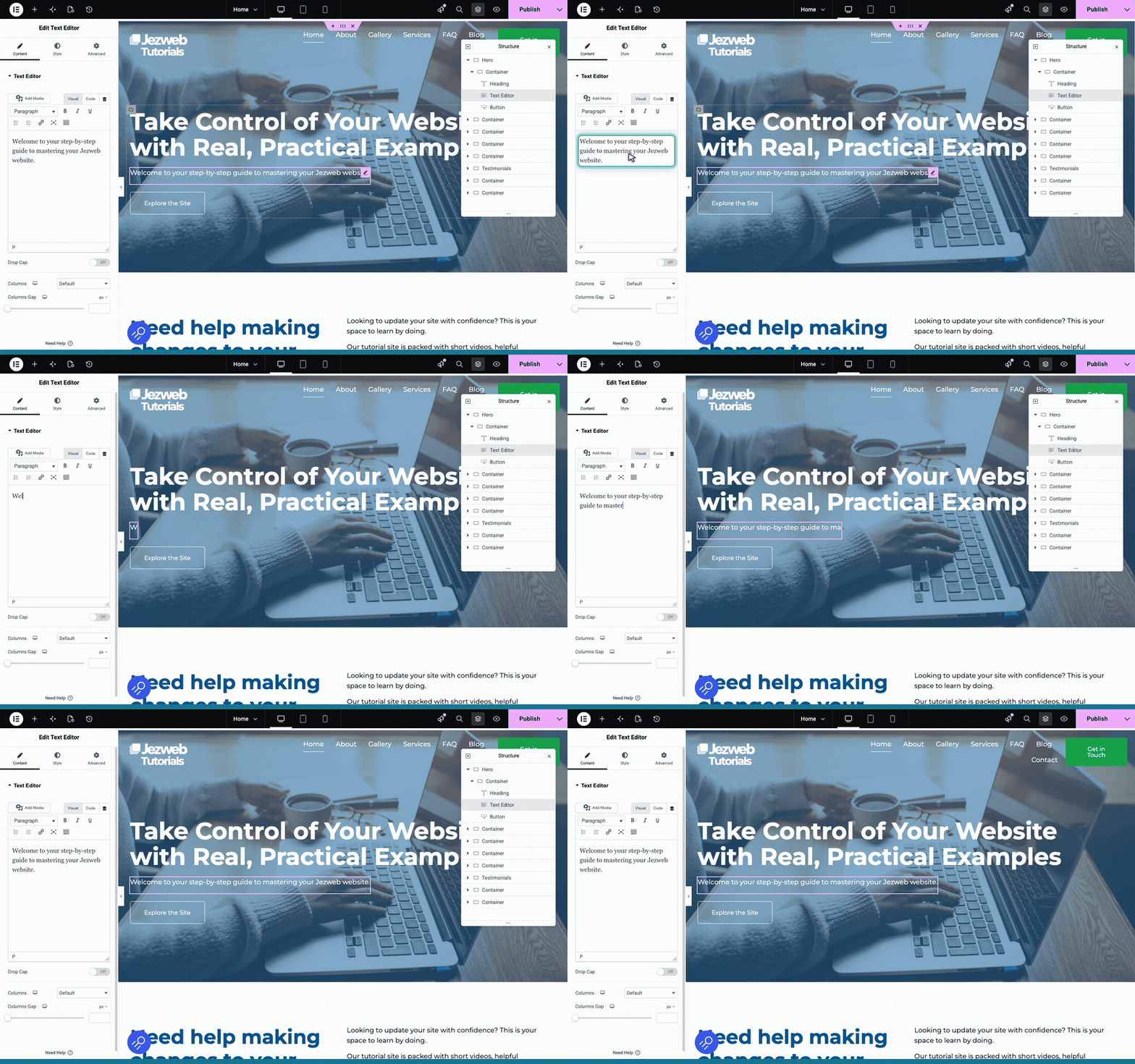
Step 6: Edit the paragraph text
7

Save your changes

When you're happy, click the Update button in the top right corner. On a brand new page it says Publish instead, but it's the same button. Either way, your new text goes live straight away.

Step 7: Save your changes
The pattern is always the same: click the text on the page, edit it in the panel on the left, then Update. It works for headings, paragraphs, buttons and captions alike. If a piece of text won't select, like something in the header, footer or a popup, it usually lives in a site template. Just reach out and we'll point you to the right spot.
